
This is an old revision of the document!
Table of Contents
Jellyfin
Jellyfin is where you'll watch everything — movies, TV shows, music, and more. This guide covers the features you'll use most.
Logging In
Go to twilighttv.myddns.me/jellyfin and sign in with the account an admin set up for you.

Screenshot: the login screen
If you don't have an account yet or forgot your password, see Account & Access Help.
The Home Screen
After logging in, you'll land on the home screen. This is organized into rows:
- Continue Watching — anything you've started but haven't finished
- Next Up — the next episode in shows you're following
- Recently Added — new movies/shows that just got added to the server
- Libraries — Movies, TV Shows, Music, etc. as separate sections you can browse
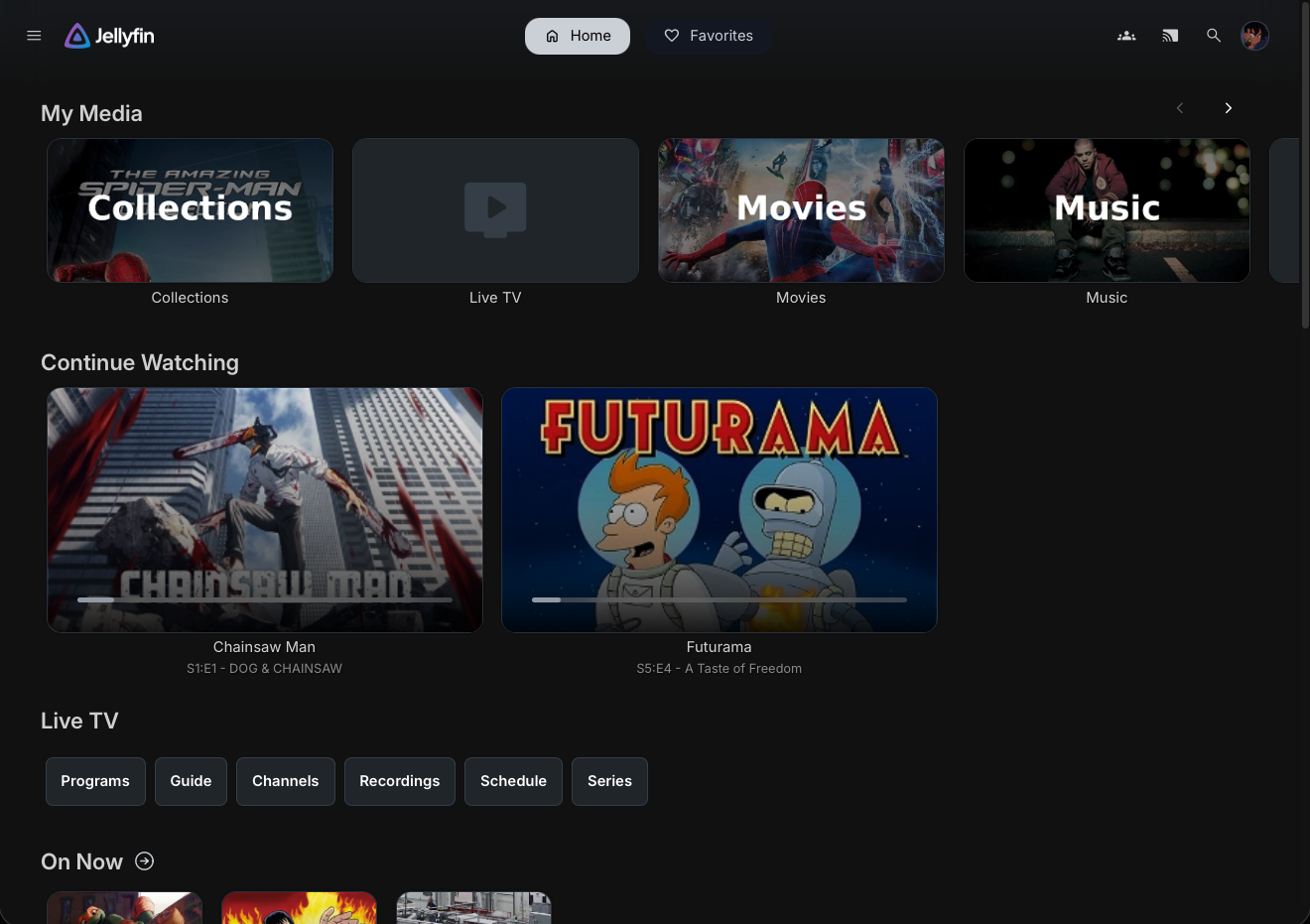 Screenshot: the home screen showing Continue Watching, Next Up, and Recently Added rows
Browsing & Searching
Click into any library (e.g. Movies) to browse the full collection. You can:
- Sort by name, date added, release date, rating, etc.
- Filter by genre, year, or whether you've watched it
- Use the search icon at the top to jump straight to a title by name
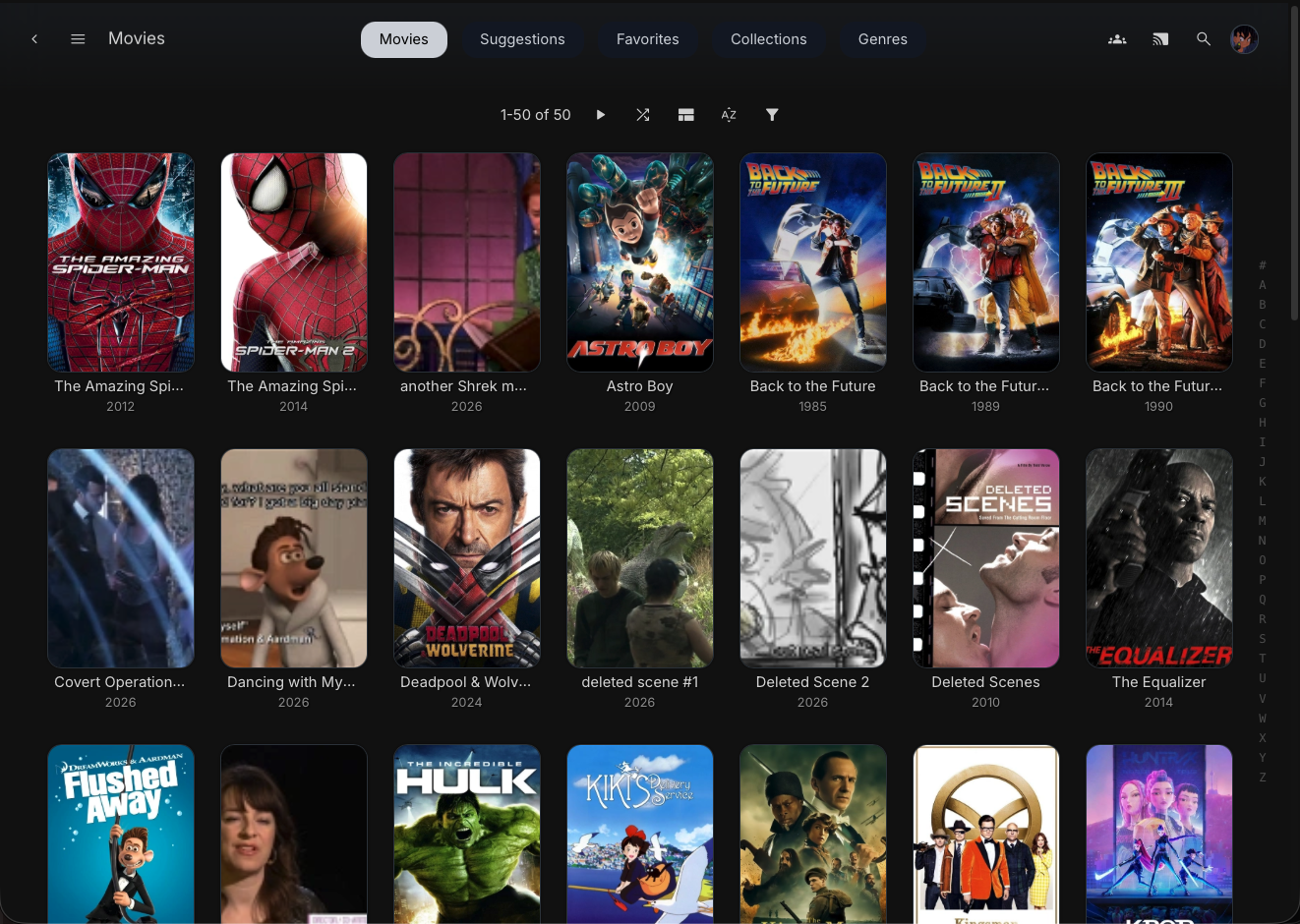 Screenshot: the Movies library grid with sort/filter options visible
Playing Something
Click any poster to open its detail page, then hit Play. From the detail page you can also:
- Read the synopsis and see the cast
- Mark something as a Favorite (heart icon)
- Mark an episode/movie as watched or unwatched manually
 Screenshot: a movie/show detail page with the Play button, favorite icon, and info
Playback Controls
While something is playing, you can:
- Change subtitles or audio tracks — click the speech bubble/gear icon in the player
- Change quality — useful if you're on a slow connection; lower quality = less buffering
- Skip intro — shows up automatically on supported shows
- Cast to a TV or other device from the player (see below)
 Screenshot: the in-player controls, ideally with the subtitle/audio menu open
Favorites & Watchlist
Click the heart icon on any movie, show, or episode to add it to your Favorites. This gives you a filtered view so you can quickly find things you've flagged, separate from the full library.
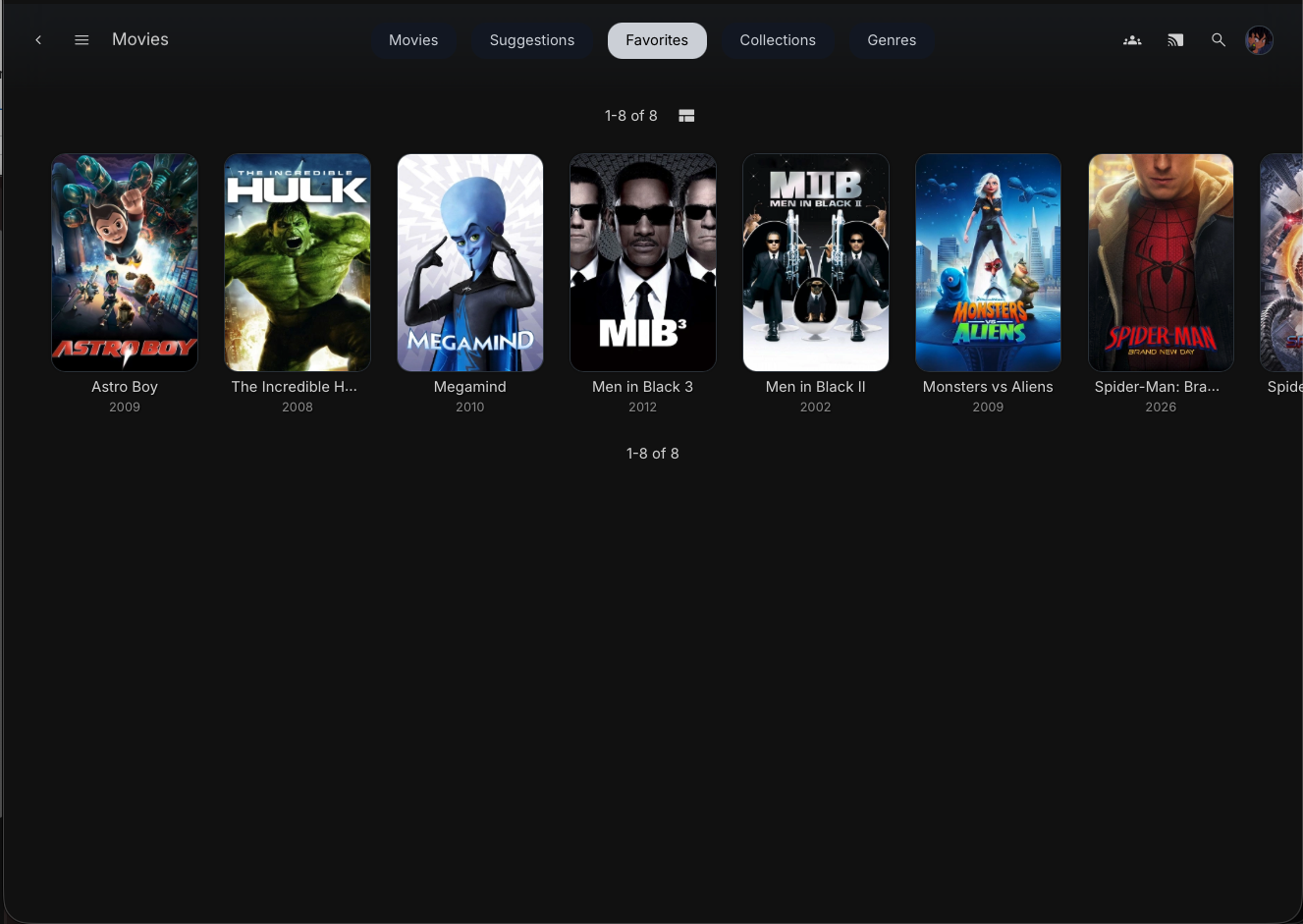 Screenshot: the Favorites filter/section
Apps & Devices
Jellyfin isn't just a website — you can install a dedicated app for a much better experience, especially on TVs and phones.
| Device | App |
|---|---|
| Smart TV / Android TV / Fire TV | Official Jellyfin app (Play Store / Amazon Appstore) |
| iPhone / iPad | Swiftfin (App Store) |
| Android phone | Jellyfin Mobile (Play Store) |
| Windows / Mac / Linux | Jellyfin Media Player (desktop app) |
When setting up any app, use this as the server address:
twilighttv.myddns.me/jellyfin
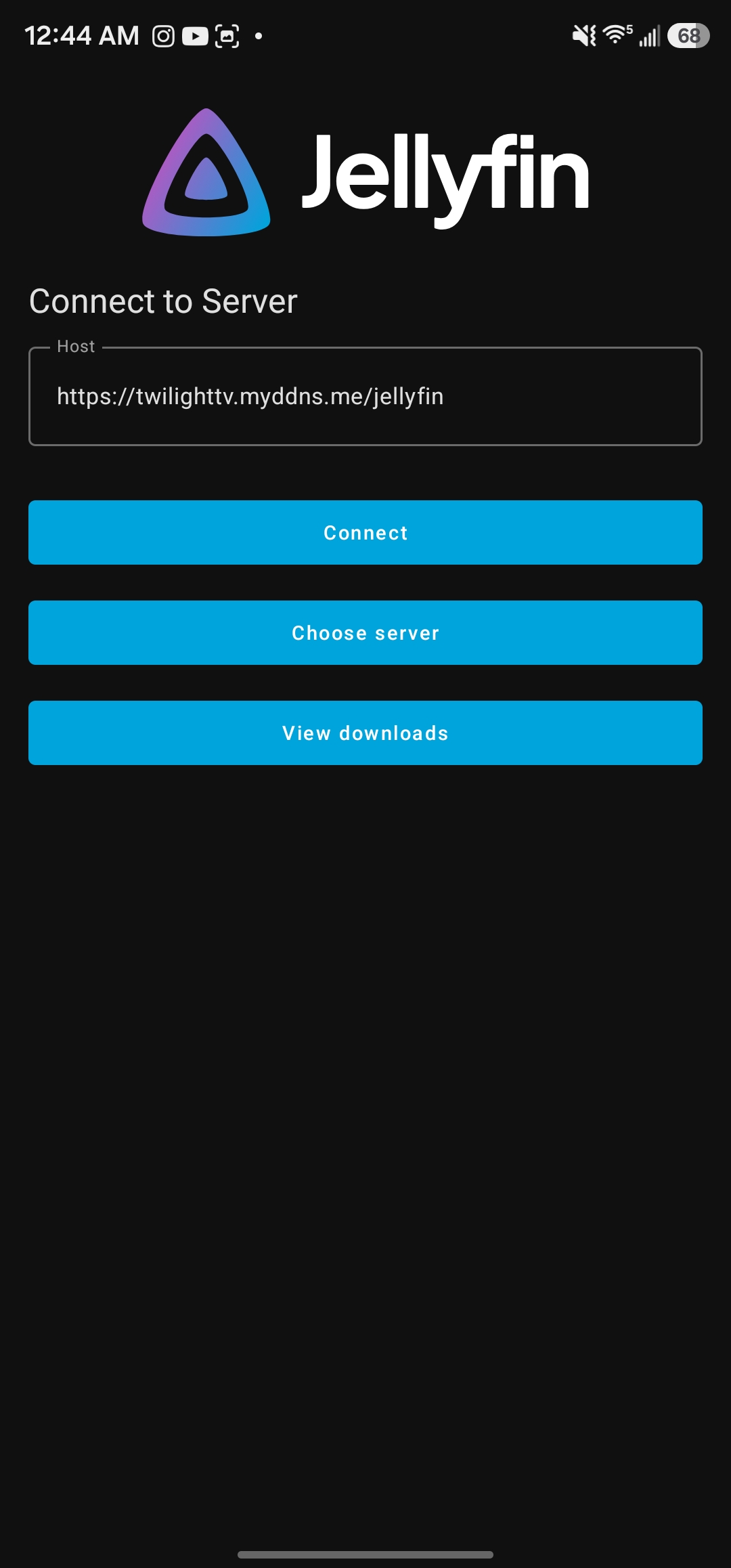 ====== Jellyfin Basics ======
Screenshot: the “add server” screen in one of the apps
====== Jellyfin Basics ======
Screenshot: the “add server” screen in one of the apps
Casting
From the web player or mobile app, tap the cast icon to send playback to a Chromecast, smart TV, or other supported device on the same network.
Downloading for Offline Playback
On the mobile apps, you can download episodes/movies to watch without an internet connection — useful for travel. Look for the download icon on the detail page (not available on the website, only the mobile apps).
Tips
- Use Next Up on the home screen to jump straight back into a show you're mid-way through.
- If something looks blurry, check your quality setting in the player — it may have auto-selected a lower bitrate.
- Subtitles not showing up? Check the subtitle menu in the player — they may just need to be turned on for that title.
Still stuck? Reach out to an admin on The Twilight Zone's Discord.