
This is an old revision of the document!
Table of Contents
Using ROMM
ROMM is where you can browse and play retro games right in your browser — no emulator setup required. This guide covers the basics.
Logging In
Go to romm.twilighttv.myddns.me and sign in with your ROMM account.
 Screenshot: the login screen
ROMM uses a separate account from Jellyfin — see Account & Access Help if you don't have one yet or need a password reset.
Supported Systems
TwilightTV's ROMM library covers systems up to the 5th generation of consoles — think PS1, N64, Genesis, SNES, and earlier. If you're looking for something newer that isn't there, it's likely outside what the server supports right now.
The Home Screen
After logging in, you'll see your library organized by platform (NES, SNES, PS1, etc.). Each platform section shows the games available for it as cover art tiles.
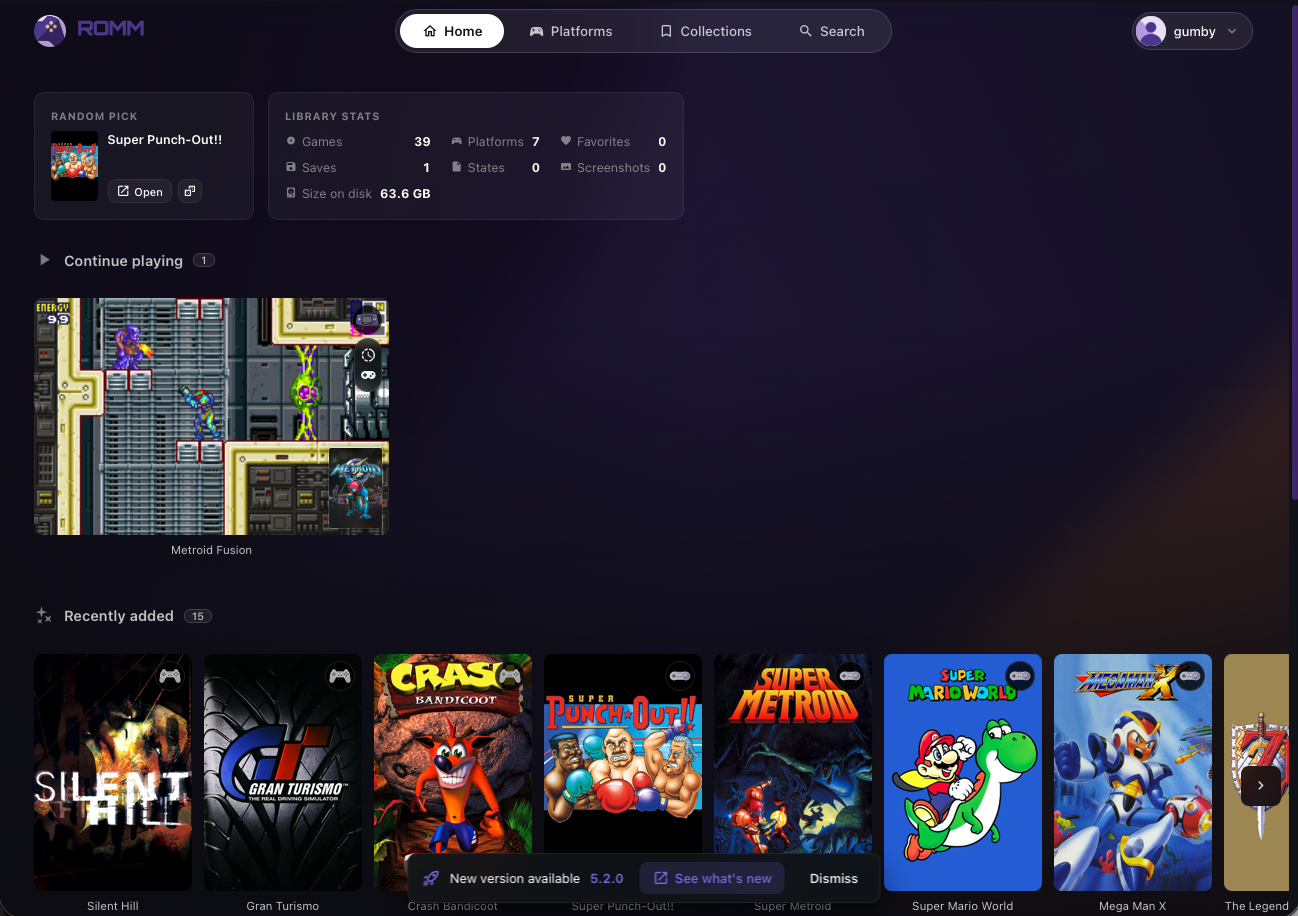 Screenshot: the home screen showing platform sections and game tiles
Browsing & Searching
- Click a platform to see every game available for that system
- Use the search bar at the top to find a game by name across all platforms
- Click a game's cover art to open its detail page — this shows info like release date, genre, and description
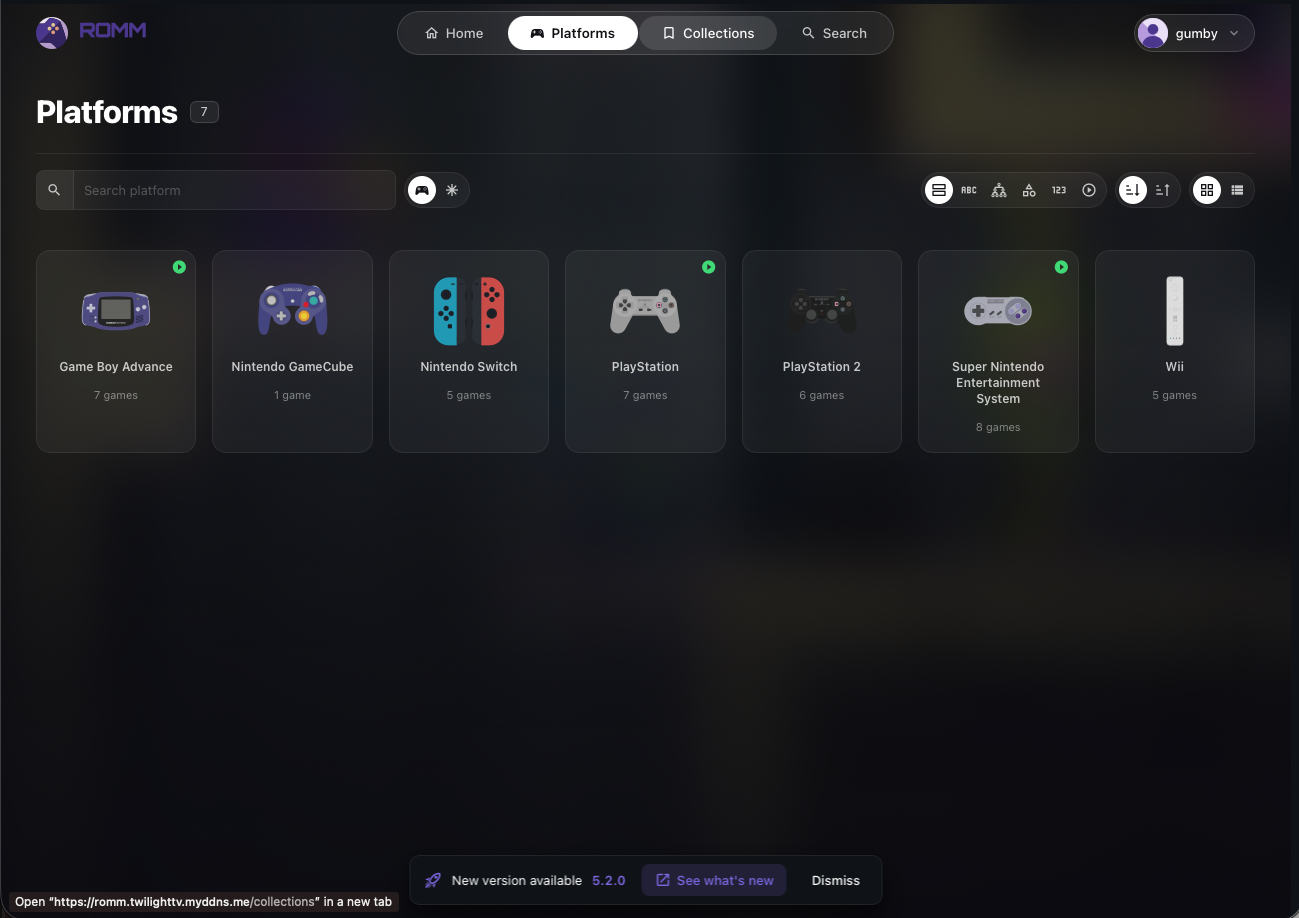 Screenshot: a platform library grid, e.g. SNES titles
Playing a Game
- Click a game to open its detail page
- Click Play
- The game launches in an in-browser emulator — no downloads or extra software needed
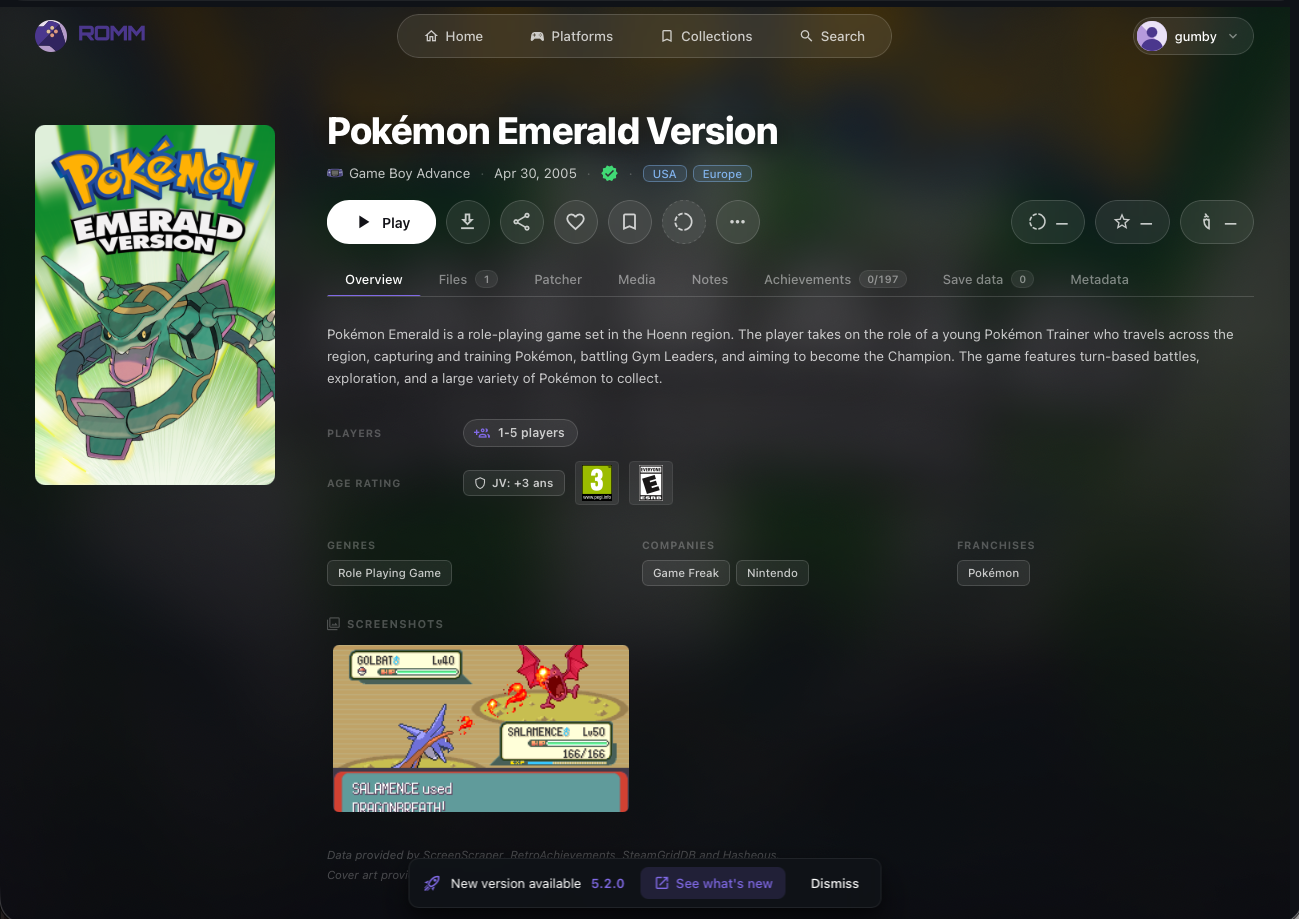 Screenshot: a game's detail page with the Play button, and/or the emulator running
Controls
- Keyboard: default controls work out of the box, though they can feel clunky for action games
- Controller: plug in a USB controller (or connect Bluetooth) before hitting Play — most browsers will auto-detect it once a button is pressed
Save States
The in-browser emulator supports save states, so you don't need to rely on the game's own save system:
- Use the emulator's on-screen menu (usually a small toolbar or press a hotkey) to save state or load state
- Save states are tied to your account, so they'll be there next time you log in — even on a different device
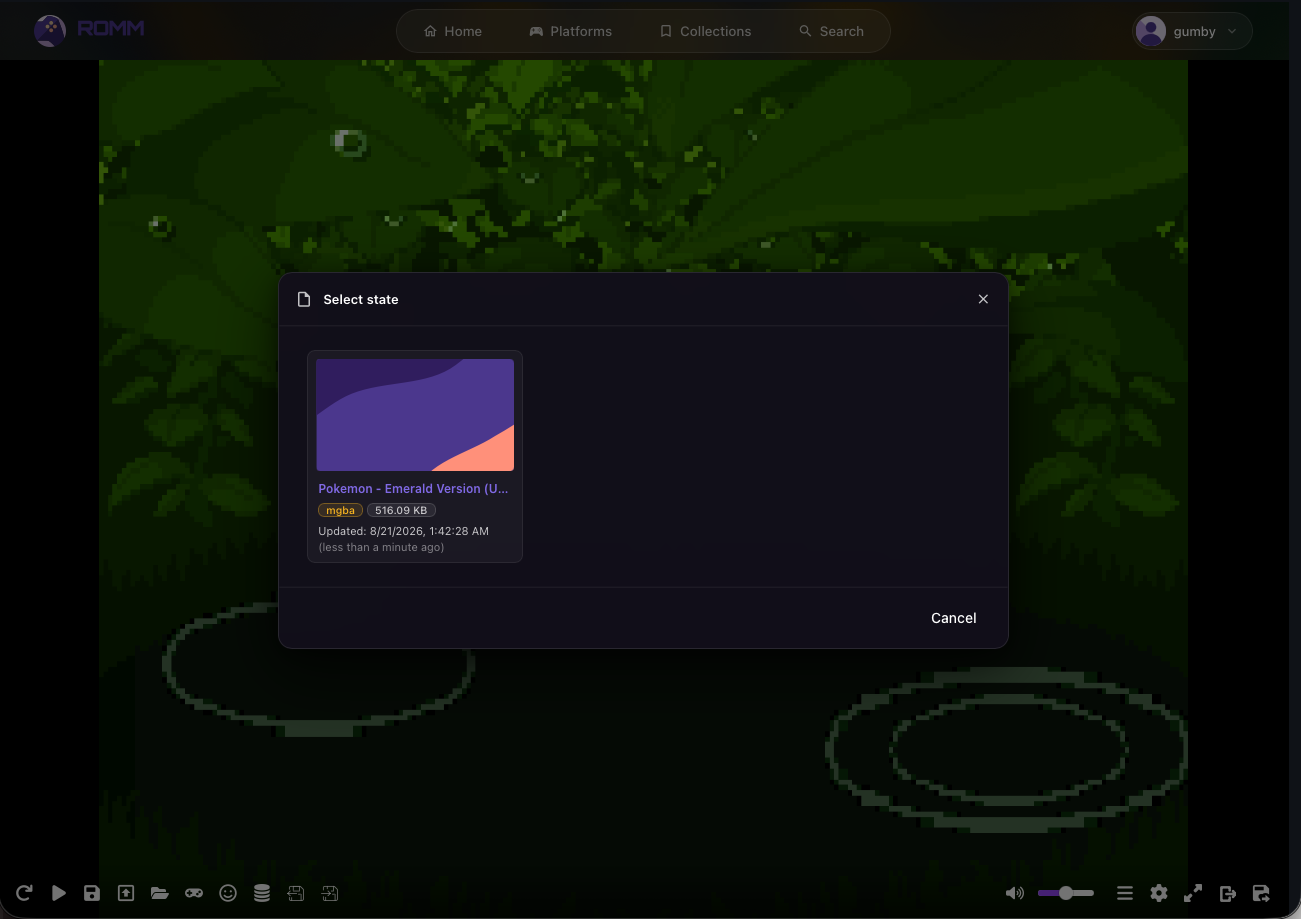 Screenshot: the emulator's save/load state menu
Downloading a Game
If you'd rather play on a real emulator or handheld instead of in-browser, most games have a Download button on their detail page to grab the ROM file directly.
Favorites
Click the heart/star icon on a game to add it to your Favorites, making it easier to find again without digging through the full platform library.
Tips
- Struggling with input lag in-browser? Try a wired controller instead of Bluetooth, and close other tabs/apps hogging bandwidth.
- Can't find a specific game? It might just not be in the library yet — ask an admin on Discord if you'd like it added.
- Save states are per-game, so you can have different progress points saved without overwriting each other.
Still stuck? Reach out to an admin on The Twilight Zone's Discord.